Importing, exporting and merging guests
Bring your guest list from a spreadsheet, export it, and merge duplicates.
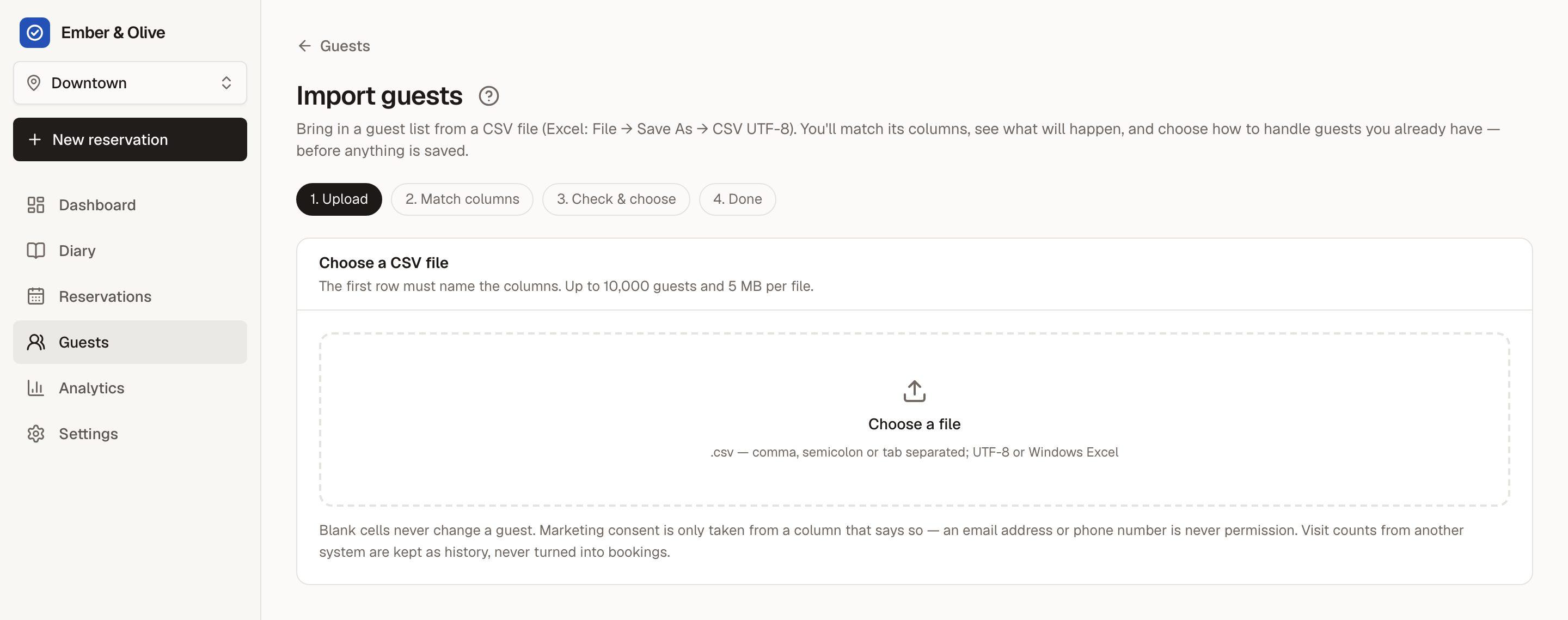
Import your guest list
- Step 1: Save your list as a CSV file. The first row must name the columns; up to 10,000 guests and 5 MB per file.
- Step 2: In Guests, press Import (owners and administrators) and choose the file.
- Step 3: Match each column to a Hostbook field (first name, email, phone…).
- Step 4: Check what will happen — new guests, guests updated, rows that can't be imported — and choose what to do with guests you already have: Fill in what's missing (recommended), Replace with the file's values or Leave them alone.
- Step 5: Nothing is saved until you confirm.
People you already have are matched by email, or phone number and first name, so they aren't doubled up. Someone who unsubscribed from marketing is never subscribed again by an import.
Tip: Leaving another booking system? Your upcoming bookings can come too — see Moving from another booking system.
Export guests
Managers can export all guests, the ones matching the current filters, or the ones selected — as Excel (.xlsx) or CSV — and choose the columns. Sensitive details (notes, allergies, accessibility) can be exported only by owners and administrators.
Duplicates and merging
Duplicates (in Guests) lists pairs of records that share an email or a phone number. Owners and administrators open a pair to Merge two guest records: choose which details stay, and every booking, note and tag moves to one record. If they're different people, mark them as different and the pair won't be suggested again.