The floor plan
See the room as it is now — or at any time — move bookings between tables, and arrange it like your restaurant.
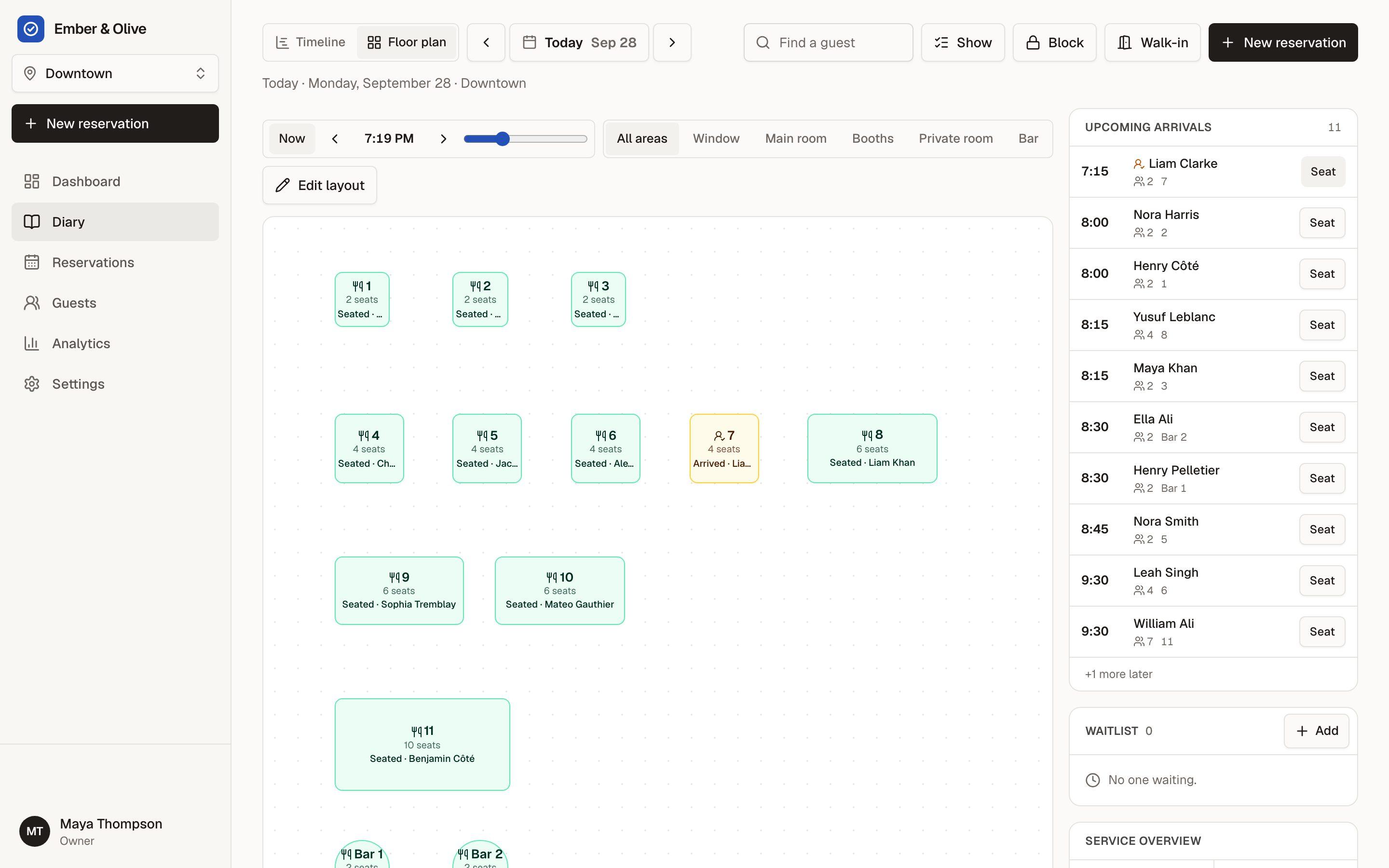
The room right now
In the diary, switch to Floor plan. Today it follows the clock: each table shows whether it's fully seated, partly seated, has a party waiting to be seated, is due soon, or is free.
Any time, any day
Use the time bar under the header (or the arrows beside it, 15 minutes at a time) to see who will be at each table later. Choose another date to see that day, starting at its first seating. Now brings you back to the live view.
Tap a table
Tap a table to see its bookings for the day. From there you can open a booking, Book this table, or Seat a walk-in here.
Move a booking to another table
Two ways, with the same rules as dragging on the timeline:
- Drag — press on a table that shows the booking (or on the guest in Upcoming arrivals beside the room) and drag it onto another table. On an iPad, press and hold for a moment first.
- Tap — click the booking, press Move table on its card, then tap the table they're moving to. Cancel or Escape leaves everything as it was.
While you choose, every table shows what it offers: Free in green — free for their whole visit; Moves 1 in amber — free once the booking in the way moves (it swaps with them, or gets another free table at its own time); faded — can't be used (point at it or tap it to see why). The bar above the room says exactly what will happen, in the same words as the timeline, for example "Move to 6 · 6:30 PM – 8:15 PM · Swap with Nico Swapper".
The move saves straight away, with Undo, and the timeline shows it at once — switch back and forth and both always agree. Moving to another table never changes the guest's time, so they aren't emailed. To change the time, drag the booking sideways on the timeline or use Edit details.
Note: A party that's already at its table moves from now until they leave — the room shows the tables free for that. Their booked time and when they sat down are kept.
Arrange the floor plan
Until someone arranges it, Hostbook lays your tables out by itself, section by section. Managers can make it look like the room:
- Step 1: Press Edit layout.
- Step 2: Drag the tables into place — positions save by themselves.
- Step 3: Press Done editing.
A table's shape is set in Tables & areas (Shape on the floor plan).