The diary
Every table as a row and every booking as a block, so gaps and busy moments are obvious.
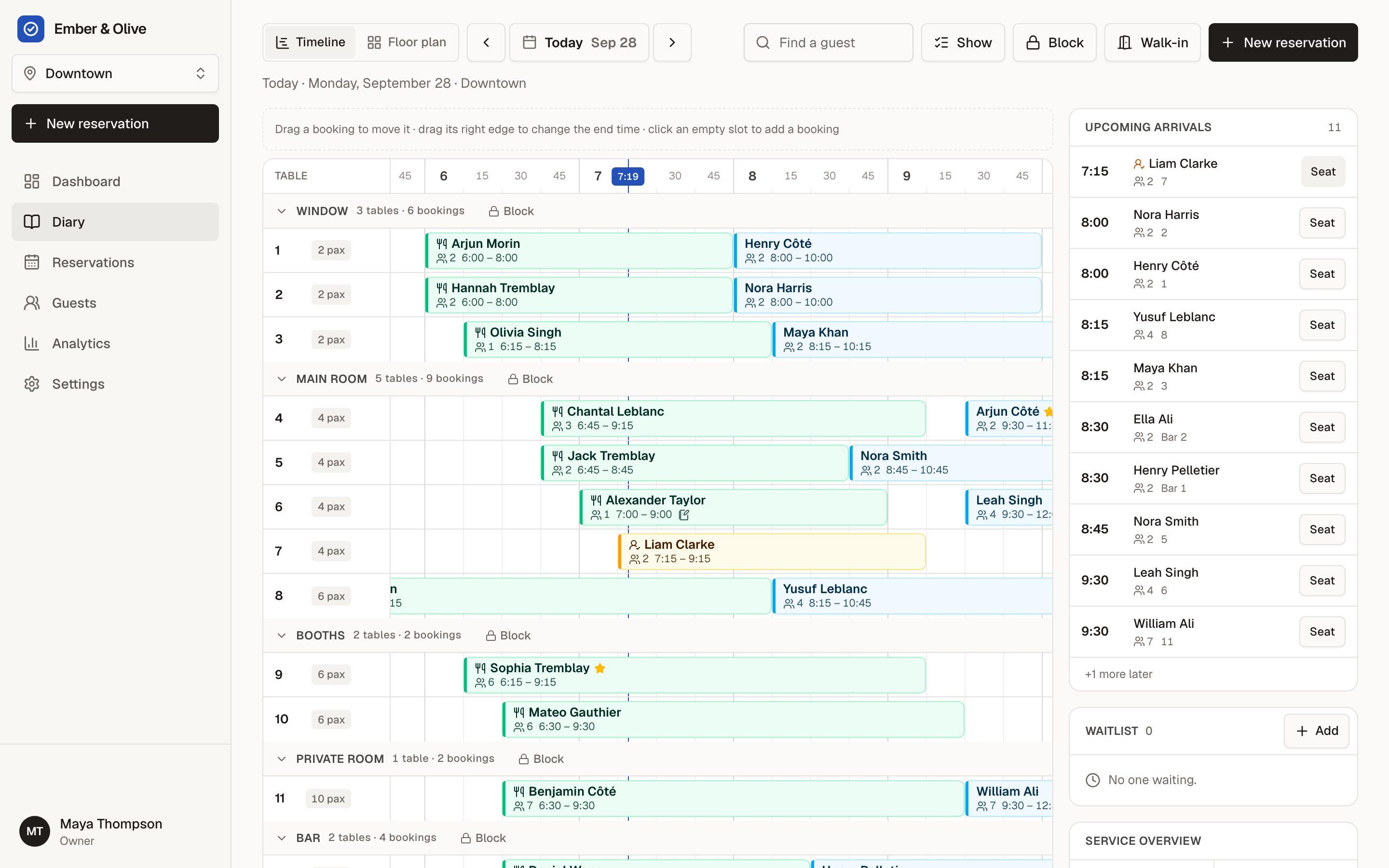
Reading the diary
Open Diary in the menu. Each table is a row, grouped by section (Dining Room, Patio…), and each booking is a block from its start to the time the table is free again, with the guest's name and party size. The grey number beside a table's name is how many it seats. The times are along the top: rest the mouse on a booking and its stretch of them lights up, with its start and end written at the two ends (or click it to see them on its card). On today's diary a line marks the current time.
The rows fit your screen: Hostbook makes them as tall as it can while still showing every table, so on most screens you see the whole room without scrolling. In slim rows a booking is one line. With a lot of tables the rows stop at a size that's still easy to read (and, on a tablet, to tap), and the diary scrolls. Fold a section away to give the others more room.
The diary shows your hours for that day: from the first seating until closing time. It starts earlier only when a booking is made for an earlier time — seating a party early never stretches it — and runs later when a party stays past closing. On a day you're closed it shows your usual hours, and a note under the date says you're closed.
When the whole day fits on your screen, the diary widens its time columns to use the space; when it doesn't, scroll sideways. For more room on a computer, fold the menu down with Collapse sidebar (see Where everything is).
A booking on several joined tables is one tall block across them. The colour and icon on each block show where the party is — see What the colours and icons mean.
Covers every 15 minutes
Under the times along the top of the timeline, the Covers row shows how many guests are booked to arrive in each 15 minutes, so you can tell the kitchen when it will get busy. A booking at 8:10 counts under 8:00, and a blank means nobody is due then. Rest the mouse on Covers, or on a number, for a reminder of what it counts.
- It counts every booking except cancellations and no-shows: parties on their way, here, seated or already gone, walk-ins, and bookings still waiting for a table.
- A party seated earlier or later than booked counts when it sat down, where its block is on the diary.
- A search or Show never changes the numbers. They follow the day and the service you pick.
Changing day, service and what's shown
- Use the arrows beside the date to go back or forward a day, or press the date to pick one.
- If you have more than one service (lunch and dinner, say), the service buttons jump to it.
- The magnifying glass (Find a guest) opens a search box — or press /. Type a name, a phone number (any way you like: 613-555-0230 or 6135550230) or a booking reference, and every other booking is dimmed. Press Escape or × to clear it.
- Show lets you show or hide Departed bookings, No-shows and Cancelled.
- Press a section's name to fold it away; the diary remembers this on each device.
Who cancelled
The calendar with a cross beside the search shows how many bookings were cancelled for the day and service shown. Press it for the list: who, the time they were booked for, when they cancelled and how long before, and how — online by the guest, or the reason your team chose. Cancellations within 24 hours of the booking are in amber, as late ones are in Analytics.
Press a name for what to know about the guest — phone, email, allergies and requests, the table they had — then Open booking (restore it there) or Guest profile.
Working with bookings
- Rest the mouse on a booking to see its details — and its times, lit up along the top.
- Click (or tap) a booking to open its card: seat the party, mark them departed or edit the booking. See Seating guests.
- Click an empty slot to start a new booking at that table and time.
- Drag a booking to move it. See Moving bookings on the diary.
Arrivals, the waitlist and bookings without a table
Beside the diary you'll find the service in two lines, the parties still to arrive and the waitlist. On a tablet, press Arrivals & waitlist to see them (Waitlist on a phone). To fold a list away, press its heading, Upcoming arrivals, Waitlist or Servers (and Standby, where you have the standby list add-on): its number (and the waitlist's Add, the servers' Assign) stays, and pressing it again opens it. Each device remembers.
- The first line counts the guests and reservations booked for the service shown — everyone except cancellations and no-shows, including guests who have already left.
- On today's diary, the second line says how many guests are still to come: the parties in Upcoming arrivals who aren't here yet (for a party that's partly seated, the rest of it). A party more than 30 minutes late drops off the list and out of this number — mark it a no-show, or seat it if it turns up.
Any booking that isn't on a table is listed under Unassigned, with Assign table. New bookings always get a table, so this is only for older ones.
When Hostbook moved a booking to another table to make room for a new one, that booking shows two small arrows beside the guest's name. Hover over it to see where it came from and why; the booking's Details & activity keeps the record too. To stop a booking from ever being moved, tick Lock table.
Servers and their tables
Each service, give your servers their tables: beside the diary, under Servers, press Assign. Pick a server, then tap their tables — or a section's name for all of it; tap one of theirs again to take it back. Same as … starts from the last time (the same day last week when there is one). Nothing changes until you press Save.
- Each table then shows its server's initials in their colour — beside its name on the timeline and on the corner of the table on the floor plan, which lists the servers under the room.
- Servers lists who has which tables and the guests booked there, and any tables with no server yet. A booking's card says Server: who has its tables.
- Lunch and dinner have a plan each. Servers follows the service you pick at the top; with All day it shows the one that's on (from an hour before it starts). On the floor plan, pick a time and you see who has each table then.
- Hosts and managers can give out tables. The list of servers — a name and a colour each, no sign-in needed — is in Settings → Team.
Timeline or floor plan
The switch at the top changes between Timeline and Floor plan. The date, service, search and everything else stay as they are, and each device reopens on the view it used last. See The floor plan.