Walk-ins and the waitlist
Seat a walk-in in a couple of taps, or add them to the waitlist when you're full.
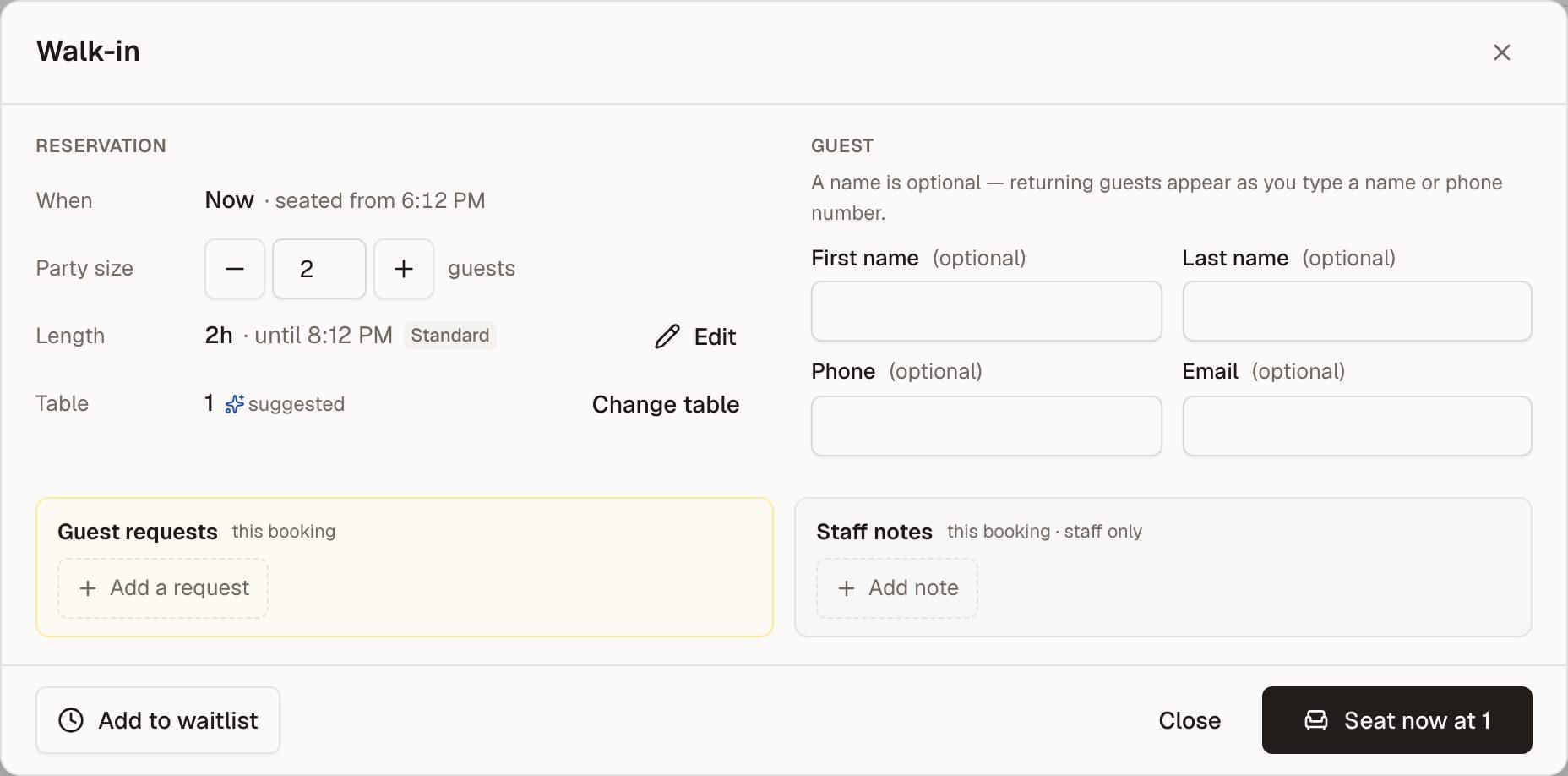
Seat a walk-in
- Step 1: On today's diary or floor plan, press Walk-in — or tap a table on the floor plan and choose Seat a walk-in here.
- Step 2: The same window as a new booking opens, set for Now. Enter the party size: Hostbook fills in the best table free right now (marked suggested) and keeps it up to date as the party changes. Change table lists every table and join as the room is right now, by section, and says why the others can't be used.
- Step 3: A name is optional — without one the booking shows as "Walk-in · 2 guests". As in a booking, returning guests appear as you type a name or phone number, and you can add Guest requests and Staff notes.
- Step 4: Press Seat now at ….
Only tables free for the whole visit are offered as they are. A table that's free only until its next booking is offered as a shorter visit, which you choose on purpose — the window then says until when, so you can tell the party before they sit down. When nothing is free, Add to waitlist takes everything you typed to the waitlist.
The waitlist
The waitlist is in the diary's Arrivals & waitlist panel. Press its Add — or Add to waitlist in the walk-in window (it takes everything you typed) or on a guest's profile — and the same window as a new booking opens: the party size, the wait you quoted, the section they'd like when you have more than one, and on the Table line whether a table is free for them right now. A name is optional, as for a walk-in, and returning guests appear as you type a name or phone number. Add Guest requests, such as a high chair or a booth, and Staff notes, then press Add to waitlist.
- When a table is free for a party you're adding, Seat now instead takes everything you typed to the walk-in window.
- Each waiting party shows a hint when a table is ready for them. To change a party's details, choose Edit in the … menu on its card.
- When you tell them their table is ready, record how: Phoned, Told in person or Other. Text messages aren't sent from Hostbook yet.
- Seat a waiting party: the walk-in window opens with their details already in, and how long they've waited. Or mark them Left or No response — you can restore a party to its original place in the queue.
Note: A party on the waitlist holds no table and doesn't change what can be booked. The waitlist belongs to the service day, which runs until 4 AM.
The waitlist is for parties at the door tonight. For guests who book ahead online and couldn't get a time, see the standby list (an add-on).