Opening hours and services
When you're open, when bookings can start, and naming services like lunch and dinner.
Managers and owners
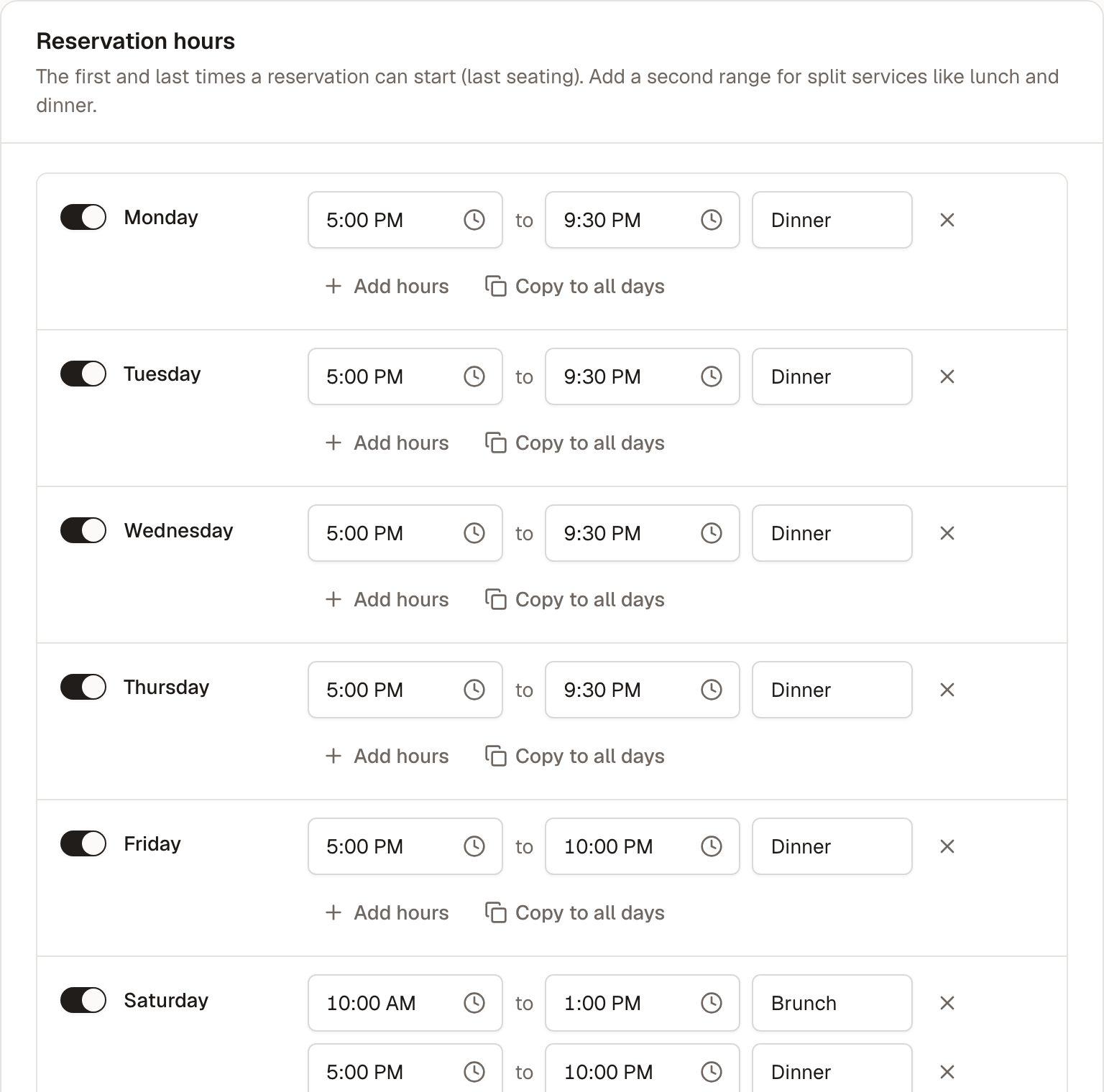
Opening hours and reservation hours
Settings → Hours has two sets of hours:
- Reservation hours — the first and last times a booking can start (your last seating). These decide which times guests and staff can book.
- Opening hours — shown to guests on your booking page.
The diary shows each day from the first seating until closing time.
Set your hours
- Step 1: Switch each day on or off — a day that's off is closed.
- Step 2: Set the times: click a time and choose from the list, or type one — "9:30 pm", "930p" or "21:30" — and press Enter. The list goes in 15-minute steps; a typed time can be any minute. On a phone or tablet, your device's own time picker opens instead.
- Step 3: Add hours adds a second range for a split service, such as lunch and dinner.
- Step 4: Copy to all days copies one day's times to the others.
- Step 5: Press Save hours.
Name your services
Give a range a name such as "Dinner". The name appears on the diary's service buttons and in the time picker, and a closure can close one service by name.
Closing for a day or an event
Don't change your hours for a one-off — add a closure instead. It can cover the whole restaurant, a section or a single table, for a day, a service or every week.