Making and changing a booking
Take a booking by phone or in person, choose the time and table, and change it later.
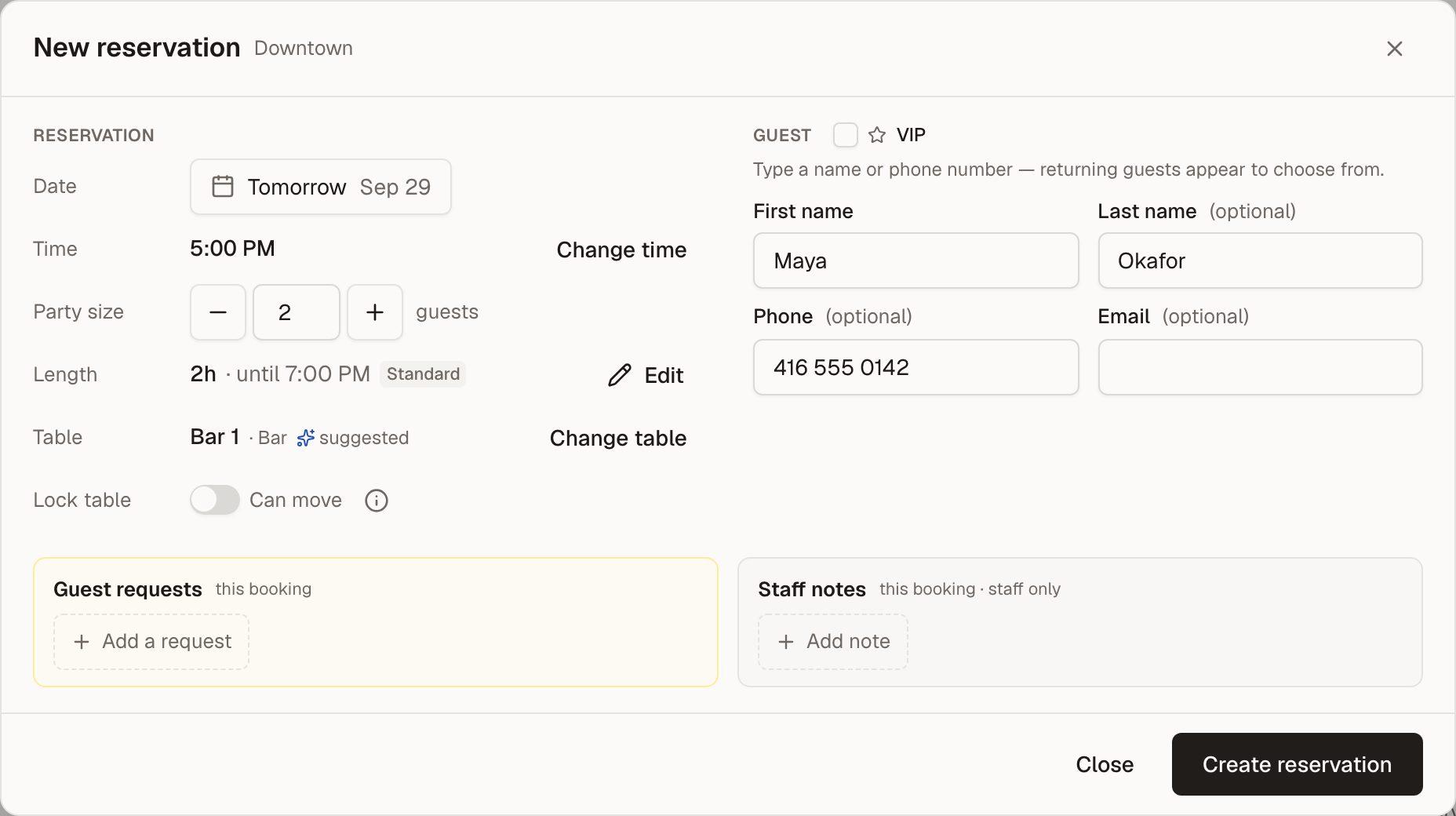
Start a new booking
Press New reservation (New on a phone) — it's at the top of every screen. You can also click an empty slot on the diary — the booking then starts at that table and time — or choose Book this table on the floor plan.
The guest
Type a name or phone number. Guests who have booked before appear as you type — choose one to link the booking to their profile, or carry on typing to add someone new. Tick VIP to mark the guest as a VIP on their profile.
Date, time, party and table
- Date — Today and Tomorrow are one tap away inside the date picker.
- Time — press Choose time to see the day's times, grouped by service, with the number of guests arriving at each. Or type a time such as 7:30 PM.
- Party size — how many guests.
- Length — filled in from your seating times for the party size; change it for this booking if you need to.
- Table — Hostbook fills in the table that fits the party best (marked suggested) — a single table, else a join — and keeps it up to date as you change the time or party. When none that fits is free, it makes room by moving a booking that can move to another table (it says who before you save) rather than giving the party a table bigger than it needs. Change table to choose another.
A table that seats fewer than the party. Hostbook never suggests one, but you can choose one on purpose. In the table list a free table that is too small says too small — press it and Hostbook asks Seat them there anyway? before taking it. And when a party outgrows the table it has, the Table line warns you and offers Keep them at table … anyway or Choose a table that fits; the booking isn't saved until you choose one. More in More or fewer guests.
Add anything the guest asked for under Guest requests, and anything the team should know under Staff notes — staff notes are never shown to the guest. Then press Create reservation.
When the guest has an email address, Email the guest a confirmation is ticked beside Create reservation — untick it if they don't want one. See Emails to guests.
Every booking needs a table
So that the restaurant can't be overbooked, every booking goes on a table. Times with no table free for the whole visit are marked unavailable. If the only way to seat a party is to move another booking to a different table, the table view says so, and the move happens when you create the booking.
Pacing and capacity limits from Booking rules only warn staff — a time over a limit is marked but can still be chosen.
Note: Managers can put a party on a table that's already booked with Double-book anyway, when they really mean to — and hosts too, where the owner switched that on (What hosts can do). Both bookings then show on the diary.
Change a booking
- Step 1: Click the booking and choose Edit details — or open it from the Reservations list, the dashboard or the guest's profile.
- Step 2: Change anything you need. Nothing is saved until you press Save changes.
A new date, time or number of guests: Email the guest appears beside Save changes, ticked, so they get the new details by email.
If you close the window with unsaved changes, Hostbook asks whether to discard them. Booking details & activity shows when the booking was made and what has happened to it.
The Reservations list
Reservations lists a day's bookings. Search by name, phone number or confirmation code, and filter by status — Upcoming & seated hides the ones that are finished.