Seating guests: arrived, seated and departed
Seat a party with one tap and record part of a party — when their time is up, Hostbook marks them departed by itself.
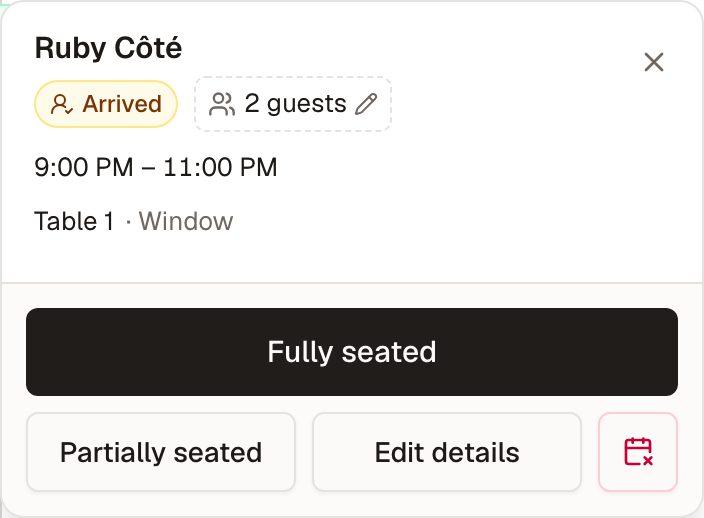
The booking card
Click or tap a booking — on the diary, the floor plan or the arrivals list — and its card opens beside it with the next steps:
- Fully seated — the whole party is at the table. They don't need to be marked arrived first. Their booking then starts when they sat down — or, if you seat them before your first booking time of the day, from that time (seated at 3 PM — or at 1 AM — in a restaurant open 5–10, they're seated from 5:00), so the diary keeps to your hours.
- A party that's late is seated the same way, with no question: at 6:05 for a 6:00 booking, they have their usual time from when they sat down if their table is free that long — otherwise until the next booking on it, and the message says until when (“At the table until 8:00 PM — it isn't free after that.”). The booking after them is never moved.
- Partially seated — some of the party is at the table; say how many.
- Mark departed — the party left early, so the table is free from now. You don't have to when their time is up: Hostbook does it then (see When their time is up).
- Edit details — opens the booking's window.
- The red calendar button cancels the booking (it asks first).
To close the card, click anywhere outside it, press × or Escape. The click that closes it does nothing else, so clicking an empty spot on the diary doesn't start a new booking — click again to do that. Clicking another booking opens its card straight away.
Tip: Every change can be undone for a few seconds with Undo on the message that appears.
When their time is up
When a party's booking time is up, Hostbook marks them Departed by itself — nobody needs to press anything. Their booking stays where it is on the diary and turns grey, and the table is free for the next party.
- Staying longer? Before their time is up, drag the end of their booking on the diary to when they'll leave. They keep the table until then.
- Still there after Hostbook marked them departed? Click the booking and press Mark still seated: they're back at the table for at least 15 more minutes — then drag the end for longer.
- Left early? Press Mark departed on their card, and the table is free from that minute.
- Bookings that never arrived stay as they are — Hostbook never marks anyone a no-show by itself.
Seated by mistake, or at the wrong table
A party that's at its table has two more choices at the bottom of its card, on the diary and the floor plan alike:
- Not seated yet — they were seated by mistake and aren't here yet. The booking goes back to how it was: expected at its booked time, on its table. (If they are here but waiting, mark them arrived in Edit details.)
- Move table — they're sitting somewhere else. Pick the table they're really at from the tables free from now until they leave (on the floor plan, tap it on the room); their visit keeps its planned end.
Both show Undo for a few seconds. Not seated yet isn't offered for a walk-in, which has no booking to go back to. If someone else has been booked onto that table at the original time in the meantime, Hostbook says so and changes nothing. You can also drag a seated party to another table, on the timeline or the floor plan — it moves the same way, from now.
When the table isn't free yet
Seating checks the booking's table is free from now. If it isn't — the party before is still there, say — nothing changes and Hostbook offers the choices: another table, making room by moving an upcoming booking, or a shorter visit if you choose one.
Arriving late is not that: a late party's own table is theirs for what is left of the time they were booked for, so they are seated at once — until the next booking there, when the table isn't free for their usual length. You are only asked when hardly any of their time is left (under 15 minutes), or when their own time on that table was double-booked.
A party keeps its table until their booking ends — the message says until when ("Maya Chen is at this table until 9:15 PM."). Then Hostbook marks them departed and the table is free: see When their time is up. To keep them at the table longer, drag the end of their booking later.
Arrived, no-show and the rest
Open the booking's window (Edit details) and use its status control for everything else: Mark arrived (here, but not at a table yet), Not arrived yet, Not seated yet, Mark no-show (once the booking's time has passed) and Mark still seated. The status menus in the reservation lists have the same choices.
Cancelling, no-shows and restoring are explained in Cancellations and no-shows.
More or fewer guests
Change the number of guests on the card and press Apply. The length stays the same unless you choose otherwise.
More guests than the table seats. Hostbook warns you as soon as you type the number — for example Table 22 seats 4 — 6 guests is more than it holds. Press Apply, and nothing changes until you choose one of two things, shown side by side:
- Keep them at table 22 anyway — they squeeze in where they are. Anyone on the team can do this, a host too.
- Or move them to a table that fits — every table and join in every section, free ones first. Press Move here on the one you want.
A party kept at a table that seats fewer shows a small guest-with-a-plus icon beside its number on the diary, and its card says so — 6 guests at table 22, which seats 4. From then on it works like any other booking: seating it, changing its time or dragging its end never asks again. You're only asked again if the party grows further, or if you choose another table that is too small. The booking window asks the same way on its Table line — see Make a booking.
Note: Hostbook never squeezes a party in by itself: online bookings, suggested tables and bookings it moves to make room only ever use tables that fit. Dragging a booking onto a table that's too small, and seating a walk-in at one, aren't possible yet — seat them at their real size first, then raise the number on the card.
When a party on joined tables gets smaller, it moves to the fewest of its own tables that still fit — for example 10 + 11 instead of 10 + 11 + 12 — and the card says which table that frees before you apply. Tick Keep all tables to keep them. The booking window does the same when you change the party there.
- It only ever uses tables the booking already has, and only a table or join set up for that many guests.
- A party already at its tables keeps them unless you choose Free — they may be spread across every table.
- A booking with its table locked always keeps its tables.
From the dashboard
Today's service on the dashboard has one-tap Seat and Departed buttons for each party — on today only: a party is seated on the day of its booking.