Tables and areas
Add your tables, group them into areas, set their seats and put them in order.
Managers and owners
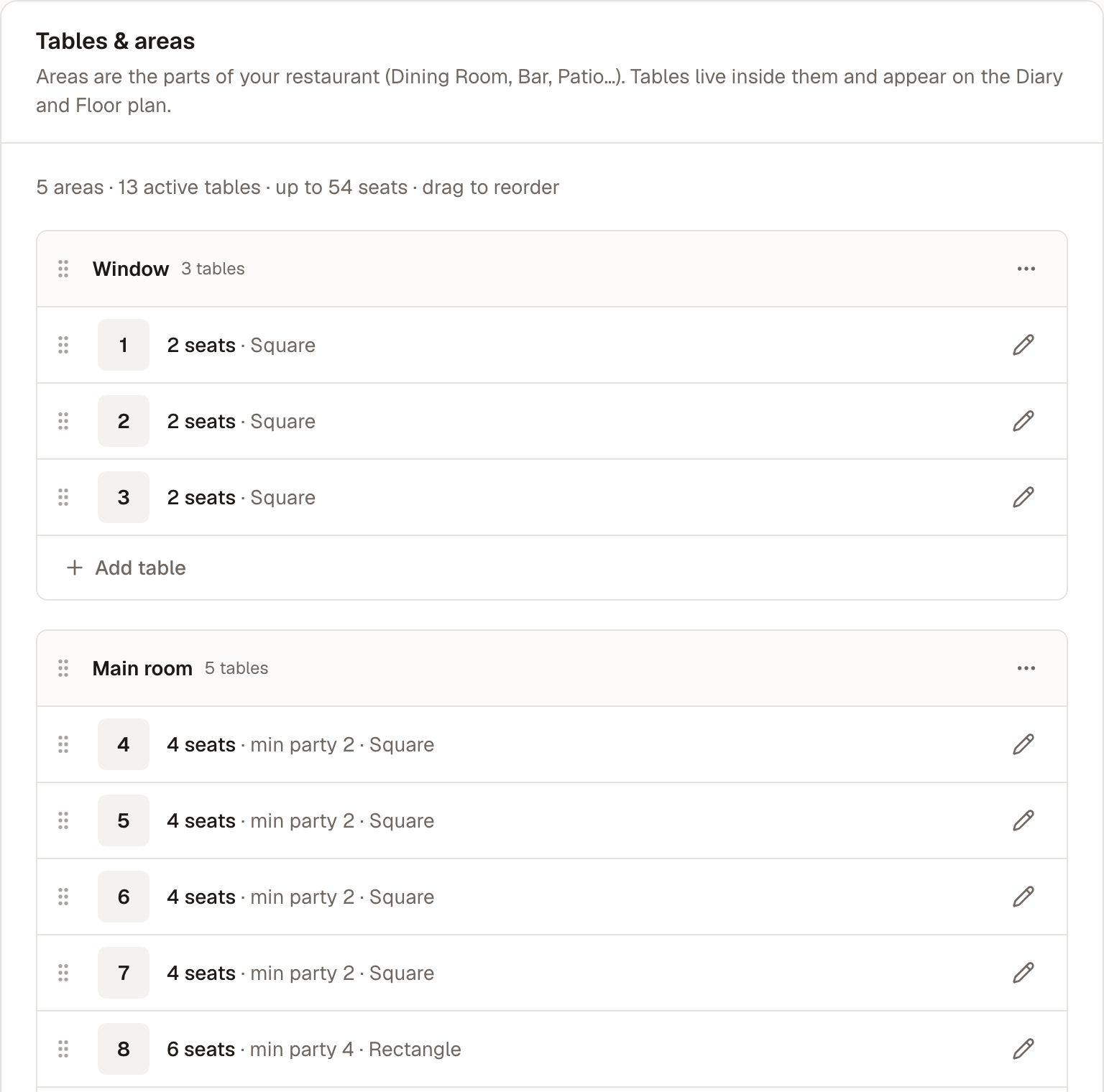
Areas
Areas are the parts of your restaurant — Dining Room, Bar, Patio. Tables live inside them and appear on the diary and the floor plan in their area. In Settings → Tables & areas, Add area creates one; its … menu can Rename, Sort tables by number, Hide area or Delete it.
Add or change a table
- Step 1: Press Add table, or the pencil beside a table to change it.
- Step 2: Enter the Table name or number and choose its Area.
- Step 3: Seats is how many guests fit. Min party stops small parties taking a big table.
- Step 4: Choose its Shape on the floor plan, then save.
Tip: Guests can't book online until you have at least one table.
Put tables in order
Drag a table by its handle (⠿) to a new place in its area, or choose Sort tables by number. Areas are dragged the same way. The order is used for the diary's rows, the floor plan's automatic layout and the table pickers. To move a table to another area, edit it and change its Area.
Stop using or remove a table
Switch off In use to stop using a table for now, or press Remove to delete it. If upcoming bookings are on it — or it would get fewer seats than a booking needs — Hostbook lists them with a free table for each, and moves them only when you confirm. If a booking can't be moved, nothing changes.
Tables that push together
Set those up in Table joins.