Table joins
Say which tables push together for bigger parties, and for how many guests.
Managers and owners
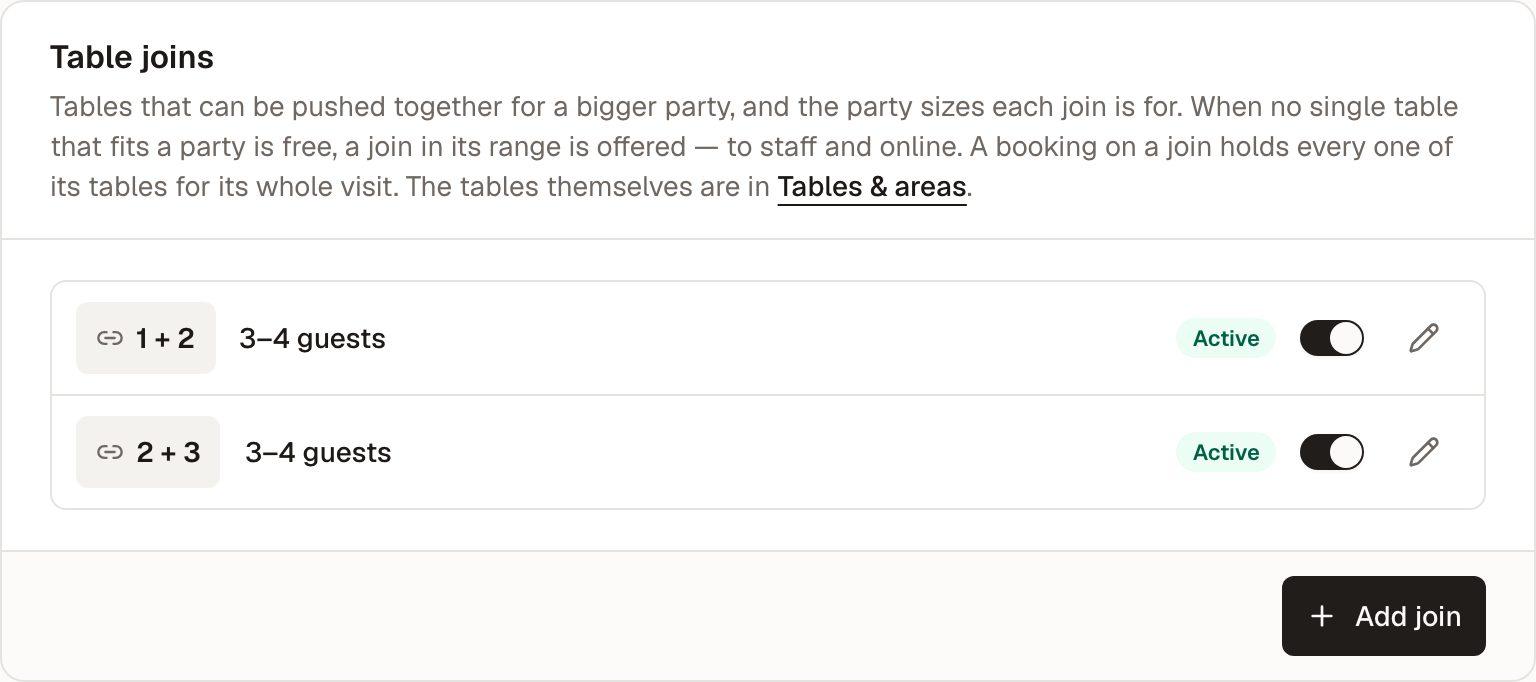
Add a join
- Step 1: Go to Settings → Table joins and press Add join.
- Step 2: Pick two or more tables. The party sizes the join is for fill in by themselves.
- Step 3: Change Smallest party and Largest party if you like, and give it a Name (optional).
- Step 4: Leave Active on so staff and online bookings can use it, then save.
The party range
The suggestion is all the seats of the tables for the largest party, and one more than the tables seat without the smallest one for the smallest party. Two two-tops make a join for 3–4; two four-tops, for 5–8. That keeps a join for parties that really need it.
How joins are used
Hostbook uses a join only when no single table fits the party, the party is inside the join's range, and every table in it is free. If a booking is in the way, Hostbook can move it to another table that fits it — never a locked booking, or a party that has arrived or is seated — before it would seat the party at a table bigger than they're meant for. A booking on a join holds all its tables and shows as one block on the diary.
When a party on a join gets smaller, it gives back the tables it no longer needs — see More or fewer guests.
Note: Switching a join off or deleting it never changes a booking that's already on it.