Getting started with Hostbook
What's already set up after you sign up, what to do next, and where everything is.
What's done when you sign up
Signing up takes a few minutes. Hostbook asks for your restaurant's name and booking link, your opening hours, how many tables of each size you have, and a few booking rules. When you finish, your restaurant is ready: it has a booking page, a diary with your tables, and sensible defaults you can change at any time in Settings.
Your next steps
Owners and managers see a Getting started checklist on Help and a card on the dashboard. It ticks itself off as you go:
- Step 1: Opening hours and tables — done when you sign up. Check them in Hours and Tables & areas.
- Step 2: Your first online booking — share your booking link or add the booking form to your website (see Your booking page). A test booking of your own counts.
- Step 3: Optional: say which tables push together (Table joins), check how long each party keeps its table (Seating times) and arrange the floor plan like your room (The floor plan).
Tip: The dashboard card can be hidden with Hide. The full checklist stays on the Help page until everything is done.
Where everything is
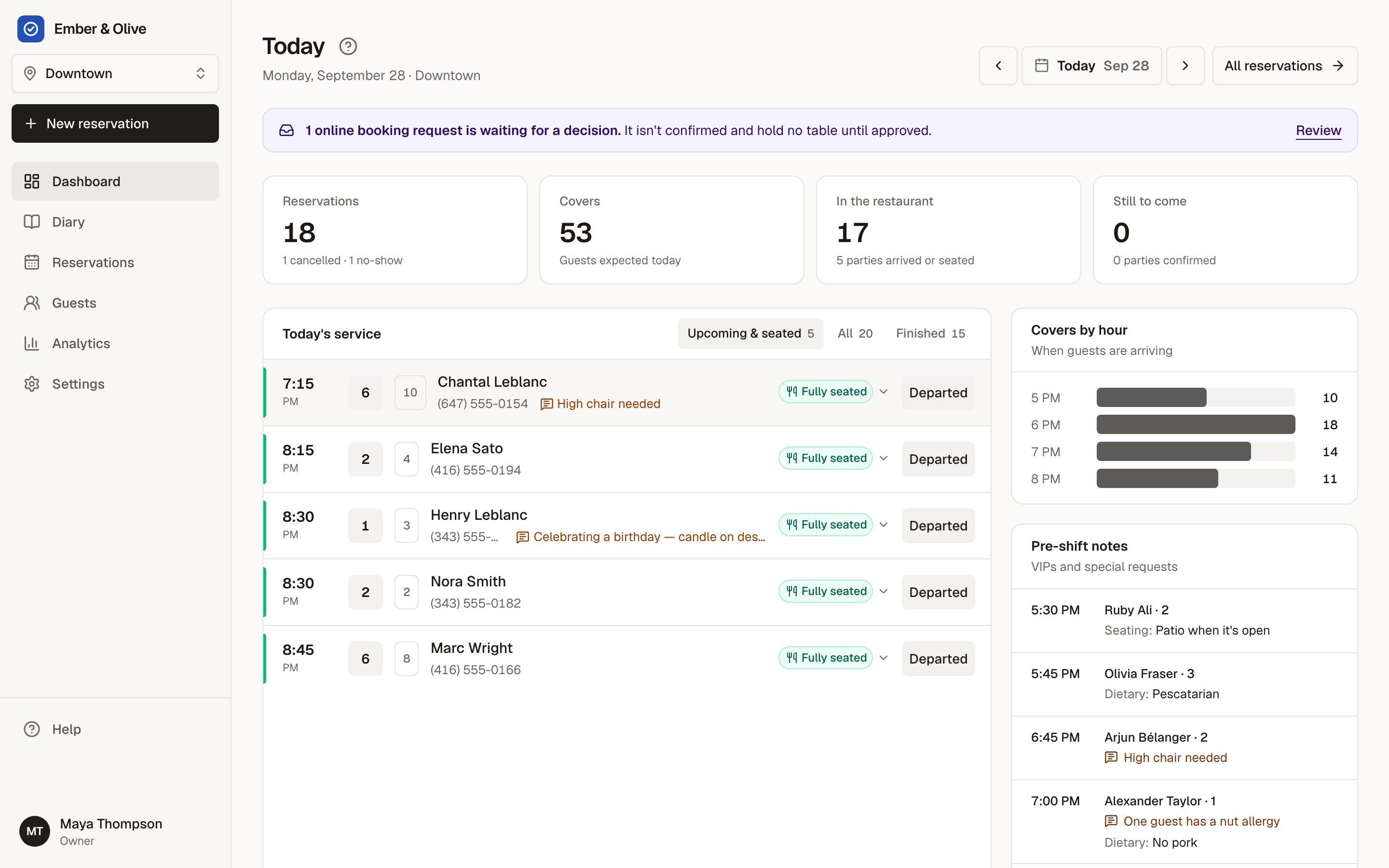
- Dashboard — today at a glance: bookings, covers, who's here and who's still to come, and pre-shift notes (VIPs and special requests).
- Diary — your tables and bookings through the day, as a timeline or as your floor plan. This is where service is run. See The diary.
- Reservations — every booking for a day as a list, with search and a status filter.
- Guests — everyone who has booked with you. See Guest profiles.
- Analytics — how each service went (managers and owners). See Analytics.
- Settings — hours, tables, booking rules, closures, your booking page and your team.
On a computer, the button beside your restaurant's name at the top of the menu (Collapse sidebar) folds the menu down to a strip of icons, for more room on the diary. Hover over an icon to see its name; + starts a booking, and Expand sidebar brings the full menu back. Each computer remembers your choice.
On a phone the main screens are in the bar at the bottom; Analytics, Help and View booking page are in the account menu (your initials, top right), and New at the top starts a booking.
The dashboard
The dashboard shows today: how many bookings and covers are expected, how many guests are in the restaurant and how many are still to come, when guests are arriving (Covers by hour) and Pre-shift notes for the team. Today's service lists every party with a one-tap Seat or Departed button.
Use the arrows beside the date (or press the date) to see another day; Today brings you back, and Dashboard in the menu always opens on today.
- A day to come — its reservations and covers, the Busiest hour and the Parties of 6+, with its covers by hour and pre-shift notes: a briefing ready for the team.
- A day gone — the Covers served, the No-shows, and bookings Not yet updated: ones still marked confirmed after their time — nobody marked them seated or a no-show. Open each and update it, so your figures in Analytics are right.
Tip: The dashboard and the diary refresh by themselves, so bookings made online or by a colleague appear without reloading.